Manage your profile
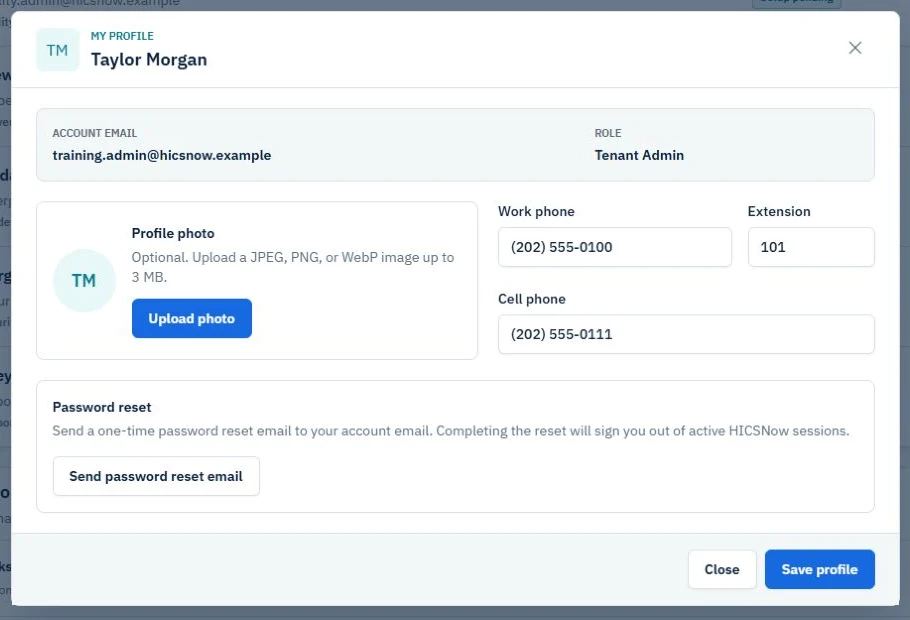
- Sign in to HICSNow.
- Select your profile icon in the upper-right corner.
- Review your name, account email, and assigned role.
- Update your optional work phone, extension, or cell phone.
- Select Save profile.
Your name and account email cannot be changed through self-service. Contact a tenant administrator if either value needs to be corrected.
Profile photo
Profile photos are optional. If no photo is present, HICSNow displays your initials.
To add or replace your photo:
- Open My profile.
- Select Upload photo.
- Choose a JPEG, PNG, or WebP image that is 3 MB or smaller.
- Wait for the upload confirmation.
The photo is saved as soon as the upload succeeds. You do not need to select Save profile unless you also changed a phone field. To return to initials, select Remove photo and wait for the removal confirmation.
Your profile is global. Updates follow your account across every HICSNow workspace you can access.
HICSNow displays the current photo in your profile menu and supported user lists. Replacing or removing it updates those locations as well.
If you are linked to one or more facility contact directories, changes to your work phone or cell phone also update those linked contact entries.
A cell phone is required while you remain a linked facility contact. Ask a tenant administrator to remove the contact assignment before clearing the cell phone from your profile.
If a photo does not upload
- Confirm the file is a JPEG, PNG, or WebP image.
- Confirm the file is no larger than 3 MB.
- Choose the original image file rather than a renamed file with an unsupported format.
- If the upload succeeds but the old image remains visible, refresh the page once.
- Contact a tenant administrator if the problem continues.
Use Send password reset email in the profile window when you need to replace a known password. HICSNow sends a one-time reset link to your account email.