Choose a workspace
HICSNow displays a workspace selector after universal login when your account has active access to more than one organization.
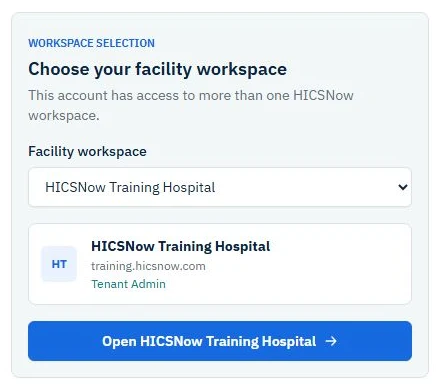
- Sign in from the main HICSNow Login page.
- Open the workspace dropdown.
- Select the organization you want to access.
- Select the Open [organization name] button.
Only the organization name is displayed in the dropdown. HICSNow uses the organization's assigned address internally to route you to the correct workspace.
If an expected organization is missing, contact a tenant administrator for that organization. Your membership may be pending, suspended, deactivated, or removed.
Organization-specific login
When you begin from an organization's branded login page, HICSNow limits sign-in to that organization and does not display the multi-workspace selector.